
TabWife
It cleans up after you.
Effortless tab management for Safari. Detect duplicates, organize by domain, and keep your browser tidy.
It cleans up after you.
Effortless tab management for Safari. Detect duplicates, organize by domain, and keep your browser tidy.
Three simple steps to a cleaner browser
Download from the Mac App Store and enable the extension in Safari settings.
Click the TabWife icon in your Safari toolbar to see your tabs at a glance.
Close duplicates, organize tabs, and manage sessions — all in one place.
Everything you need for tab sanity
Find and close duplicate tabs instantly. Customize matching criteria from relaxed to strict.
Assign domains or keywords to windows and TabWife automatically routes new tabs where they belong.
Name your windows, consolidate scattered tabs, and keep your workspace organized.
Save your current tabs as a session and restore them anytime. Never lose your research again.
Find any tab instantly across all windows. Jump to it or close it with a single click.
On-device AI analyzes your tabs and suggests topics to help organize your browsing themes.
Browse real extension screens.
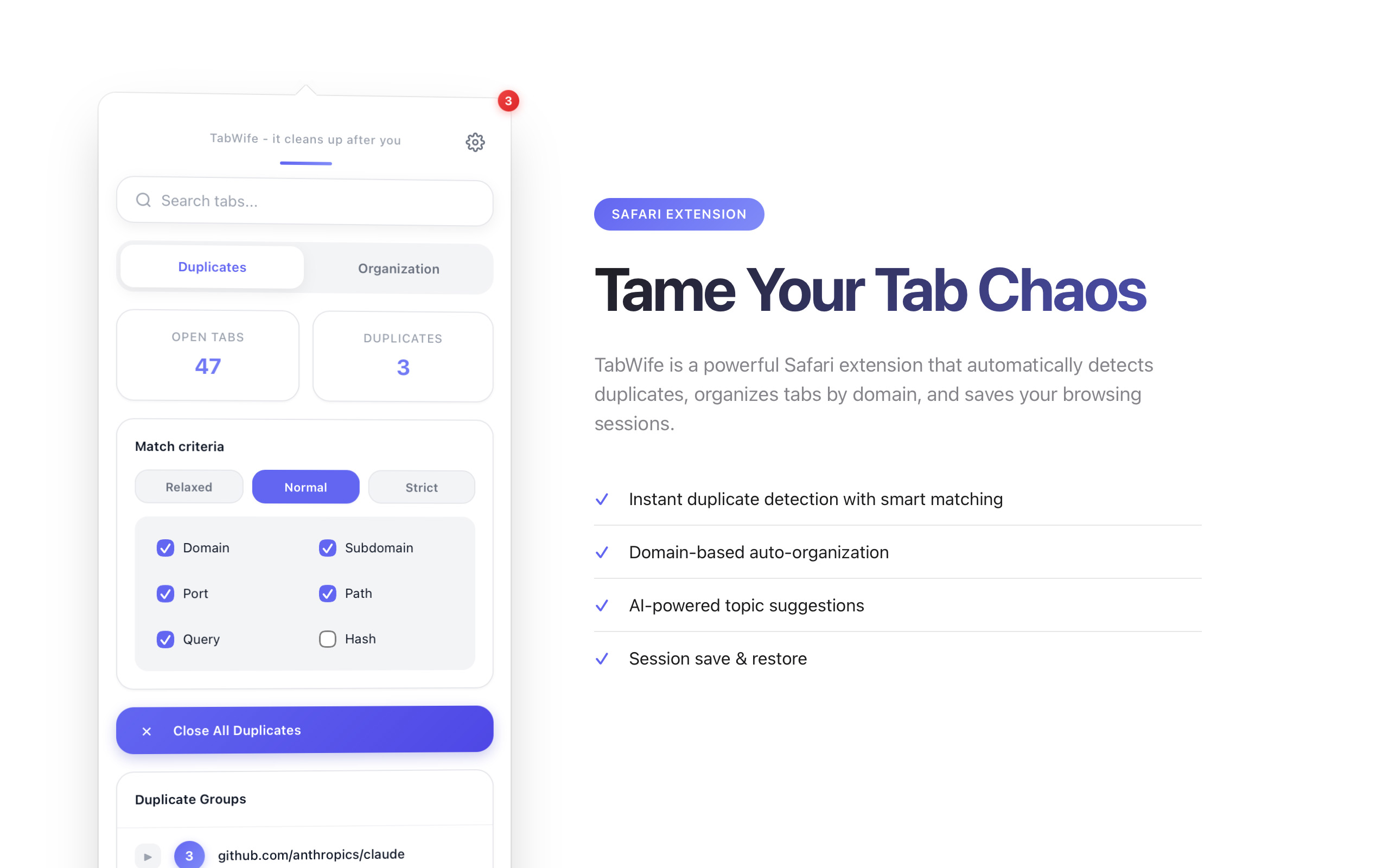
See repeated tabs instantly and clean them up in one pass.
TabWife is free on the Mac App Store with optional tips to support development.
Download on the Mac App StoreRequires macOS 12.0 Monterey or later
Your data stays yours
TabWife does not collect, store, or transmit any personal data. We don't have servers, analytics, or tracking of any kind.
Your settings, saved sessions, and window configurations are stored locally on your device using Safari's built-in extension storage.
Settings sync across your devices via Safari's native sync functionality. This is handled entirely by Apple — we never see your data.
TabWife requires permission to access your tabs to provide its features. Tab URLs and titles are processed locally and never leave your device.
TabWife offers optional tips to support development. All transactions are processed by Apple — we never see your payment information.
Last updated: January 2026
Questions? We've got answers.
After installing TabWife from the Mac App Store:
TabWife requires two permissions:
These are the minimum permissions needed for the extension to function. TabWife doesn't access your browsing history, passwords, or any other sensitive data.
Yes! TabWife runs entirely on your device. All features work without an internet connection. The only exception is iCloud sync for settings, which requires connectivity to sync across devices.
The badge and popup should show the same duplicate count. If they differ, try these steps:
Note: Pinned tabs are excluded from duplicate detection by design.
TabWife can save sessions for later, but it doesn't automatically save sessions. To preserve your tabs:
Saved sessions persist until you delete them and can be restored anytime.
Contact us at support@tabwife.com
We are committed to making this site accessible for all visitors.
This site is tested with current versions of Safari, Chrome, and Firefox on macOS and iOS.
If any part of this site is hard to use, email us and we will help directly: support@tabwife.com
Last updated: February 16, 2026